How to Clear Browser Cookies
General Information for Desktop Users

Chrome
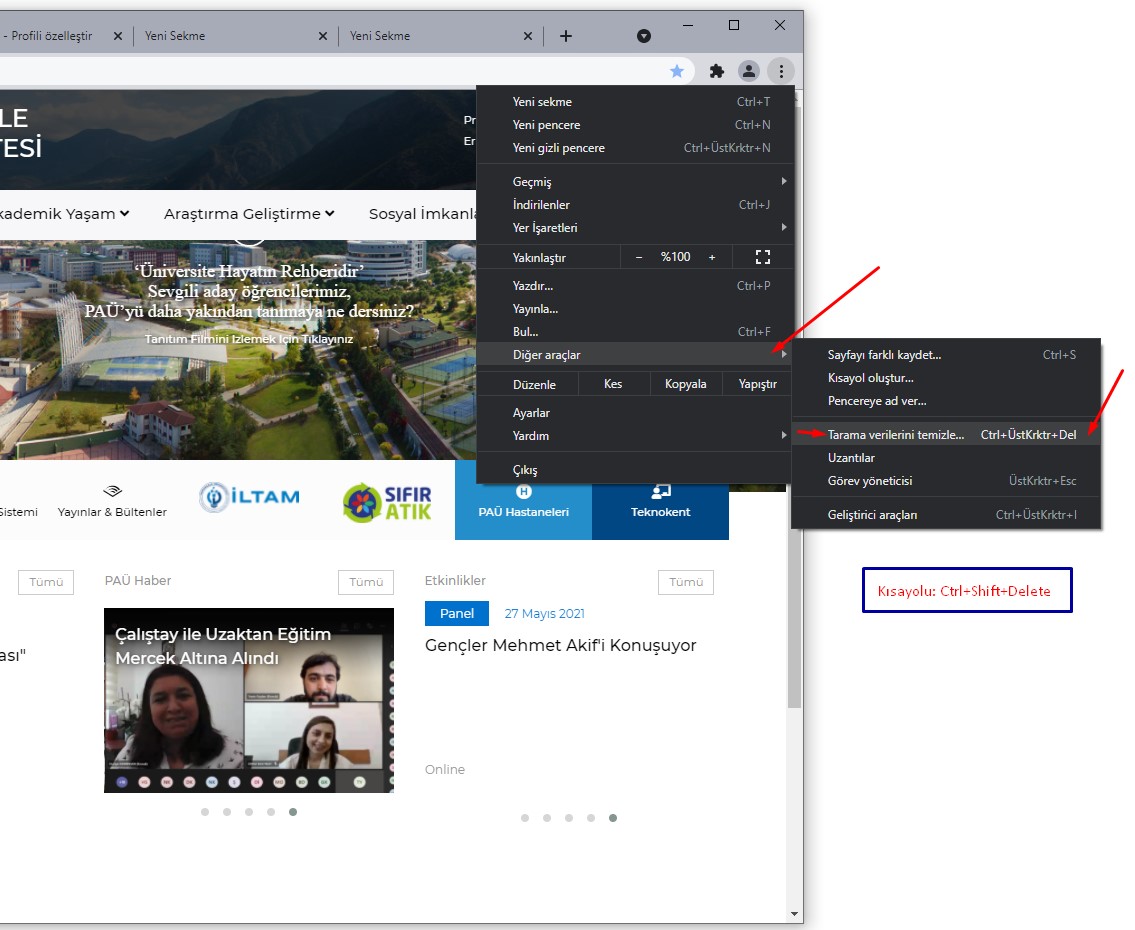
To clear cookies in Google Chrome:
Click the three vertical dots in the top-right corner of the Chrome window.
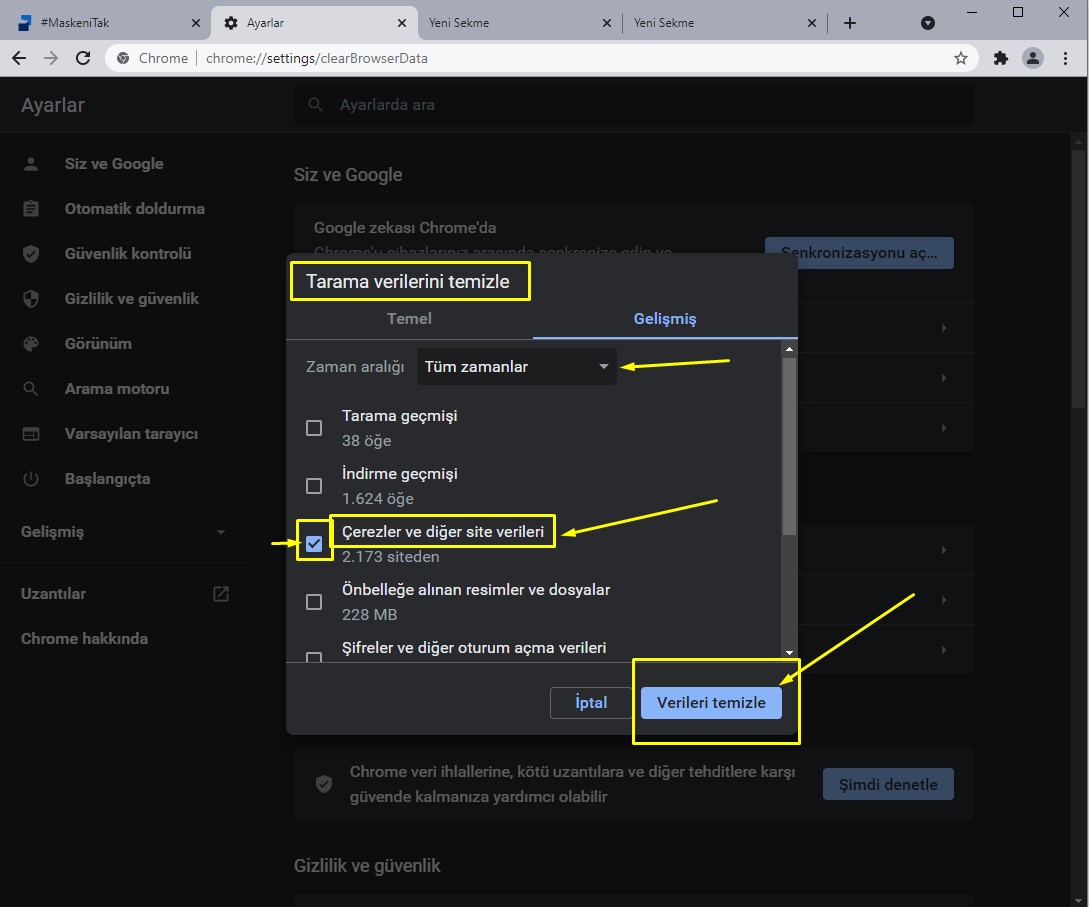
Select More Tools > Clear browsing data.

Firefox
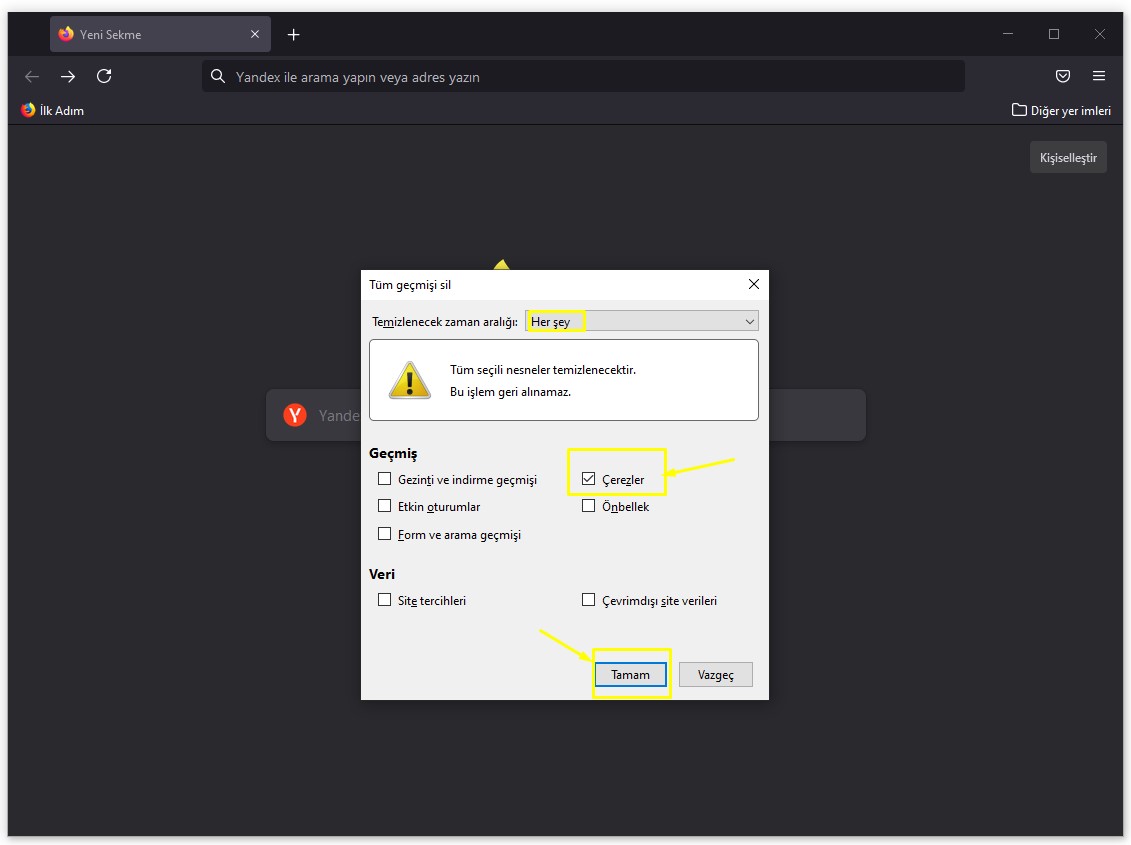
To clear cookies in Firefox:
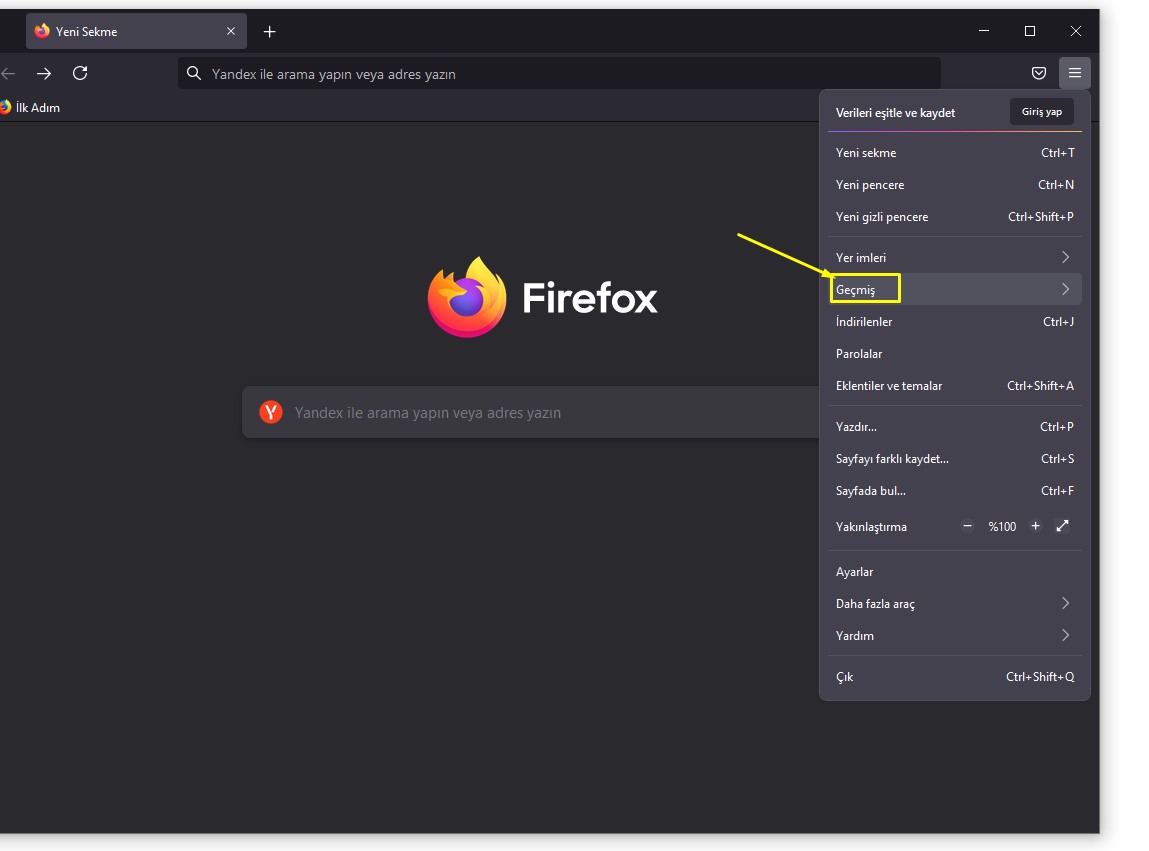
Click the three horizontal lines in the top-right corner of the Firefox window.
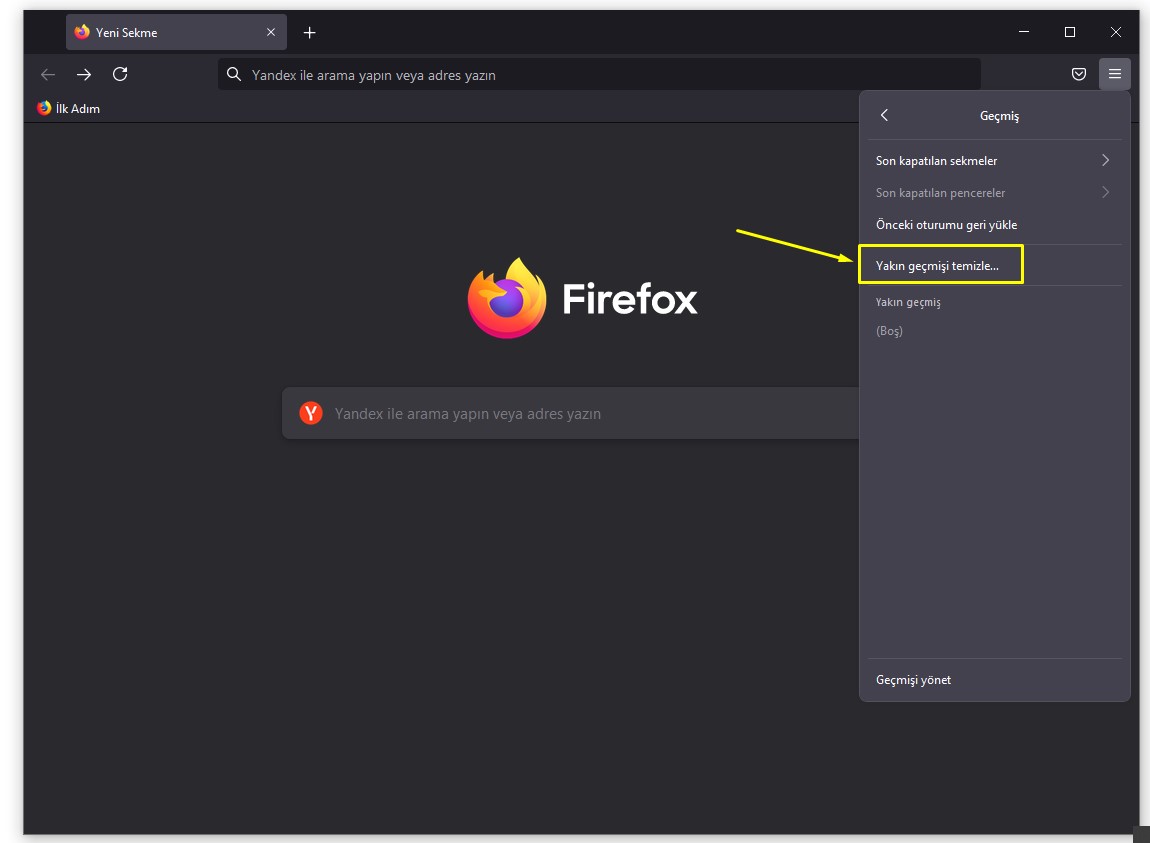
Go to History > Clear Recent History...
Make sure Cookies is checked.
Click OK.

Microsoft Edge
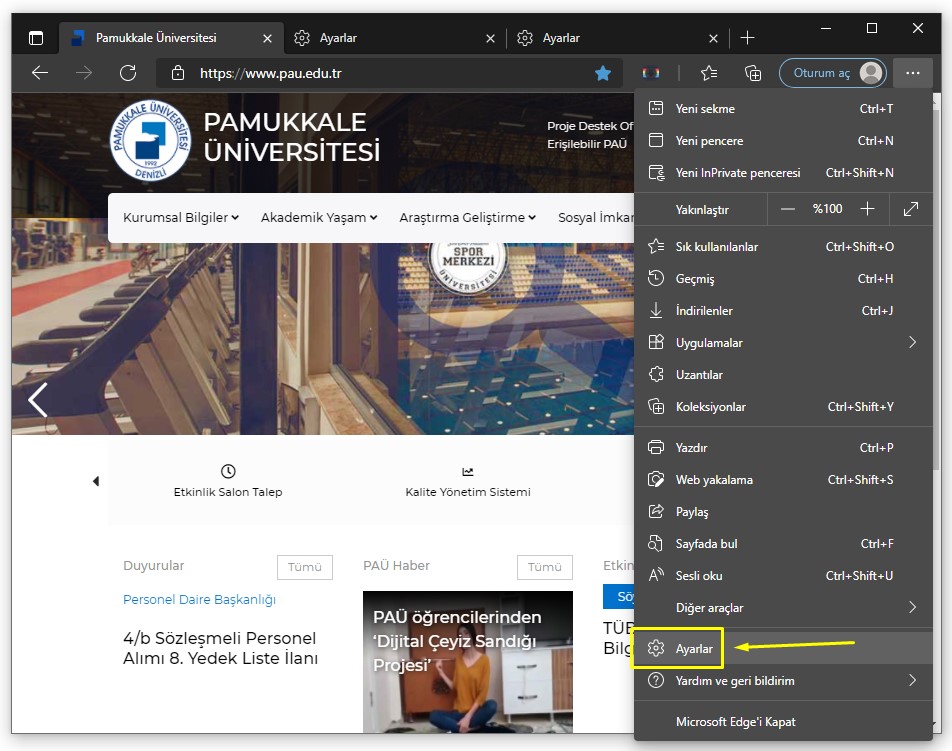
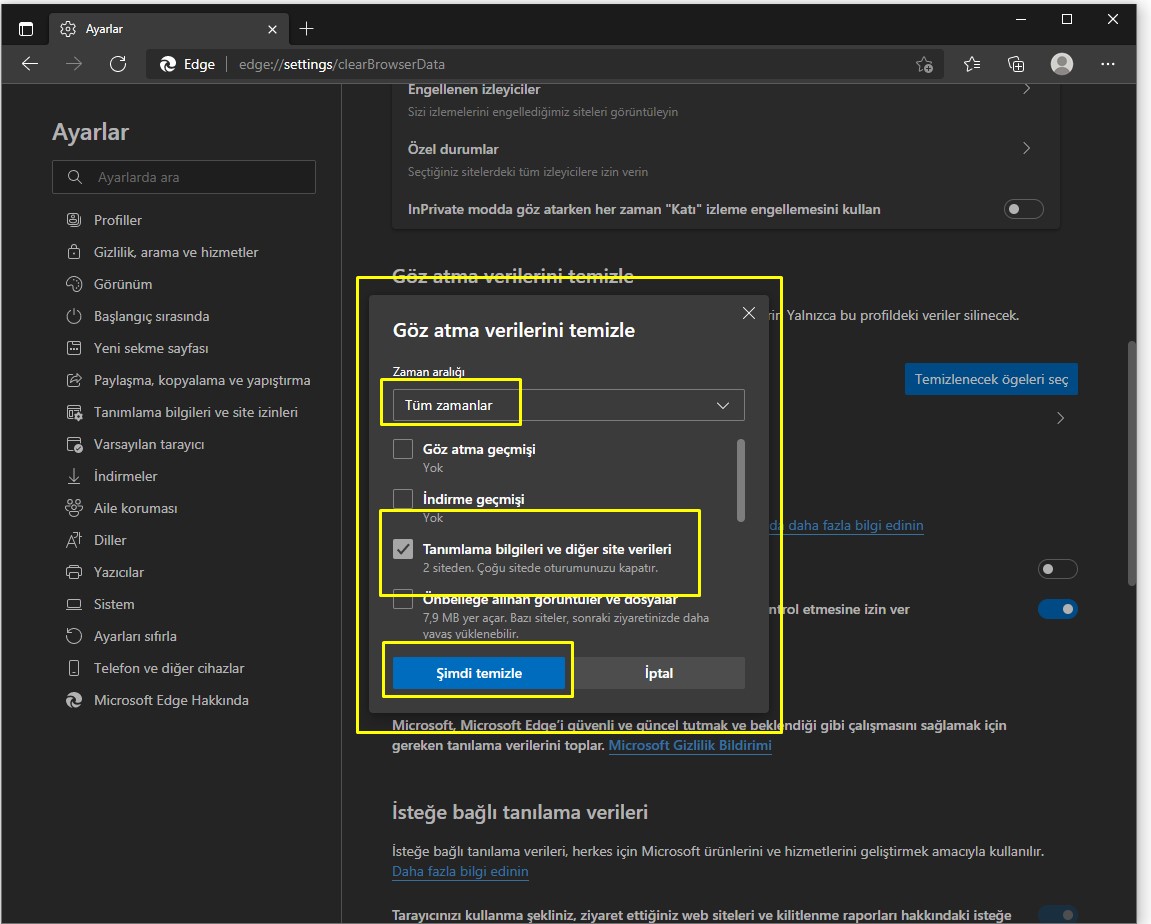
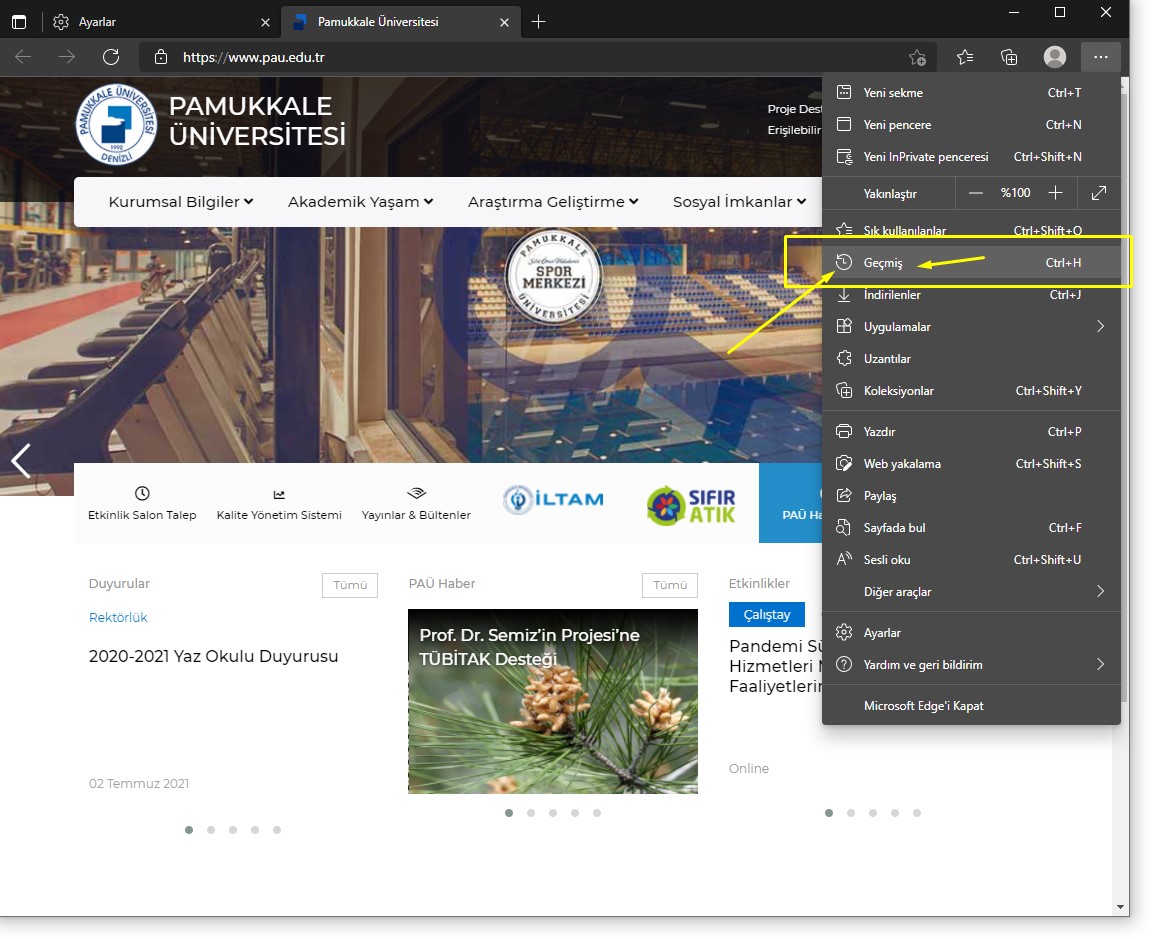
To clear cookies in Microsoft Edge:
Click the three horizontal dots in the top-right corner of the Edge window
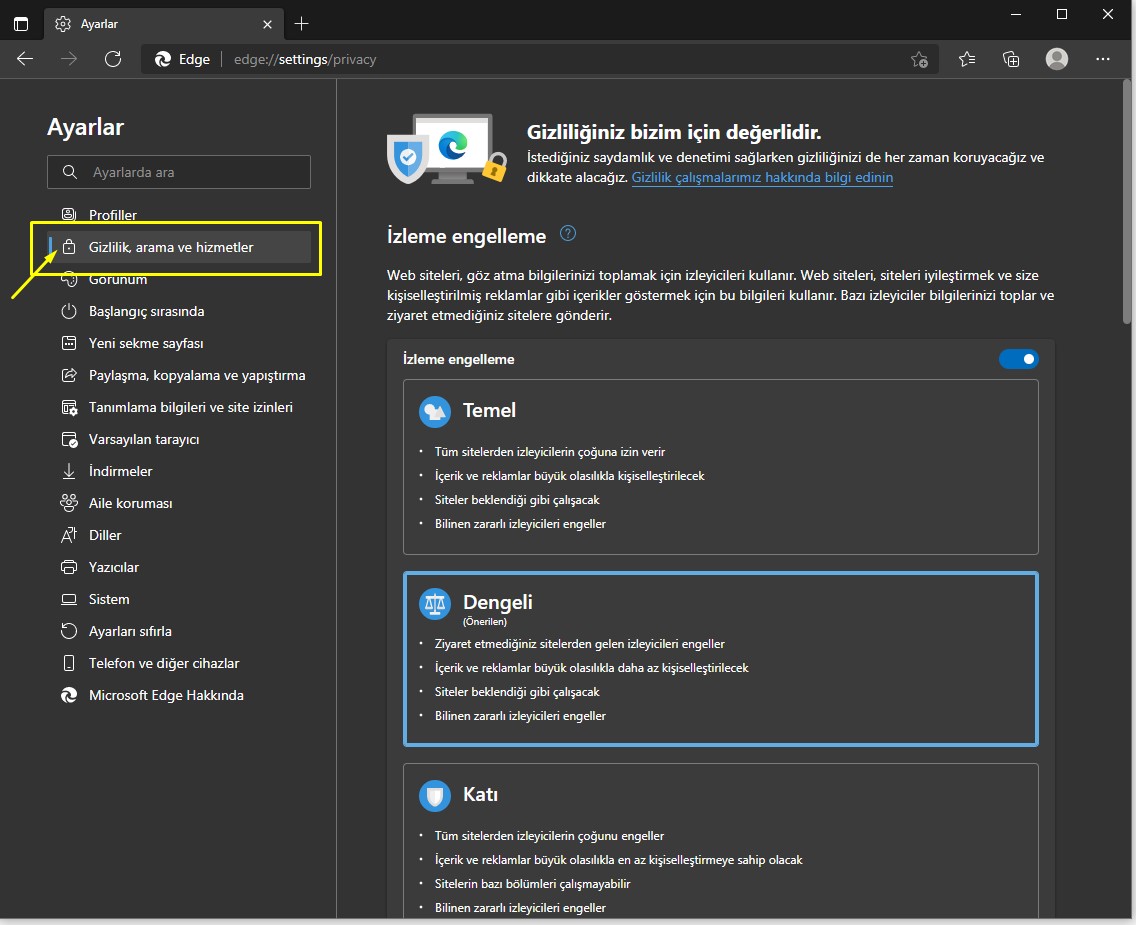
Go to Settings > Privacy, Search, and Services.
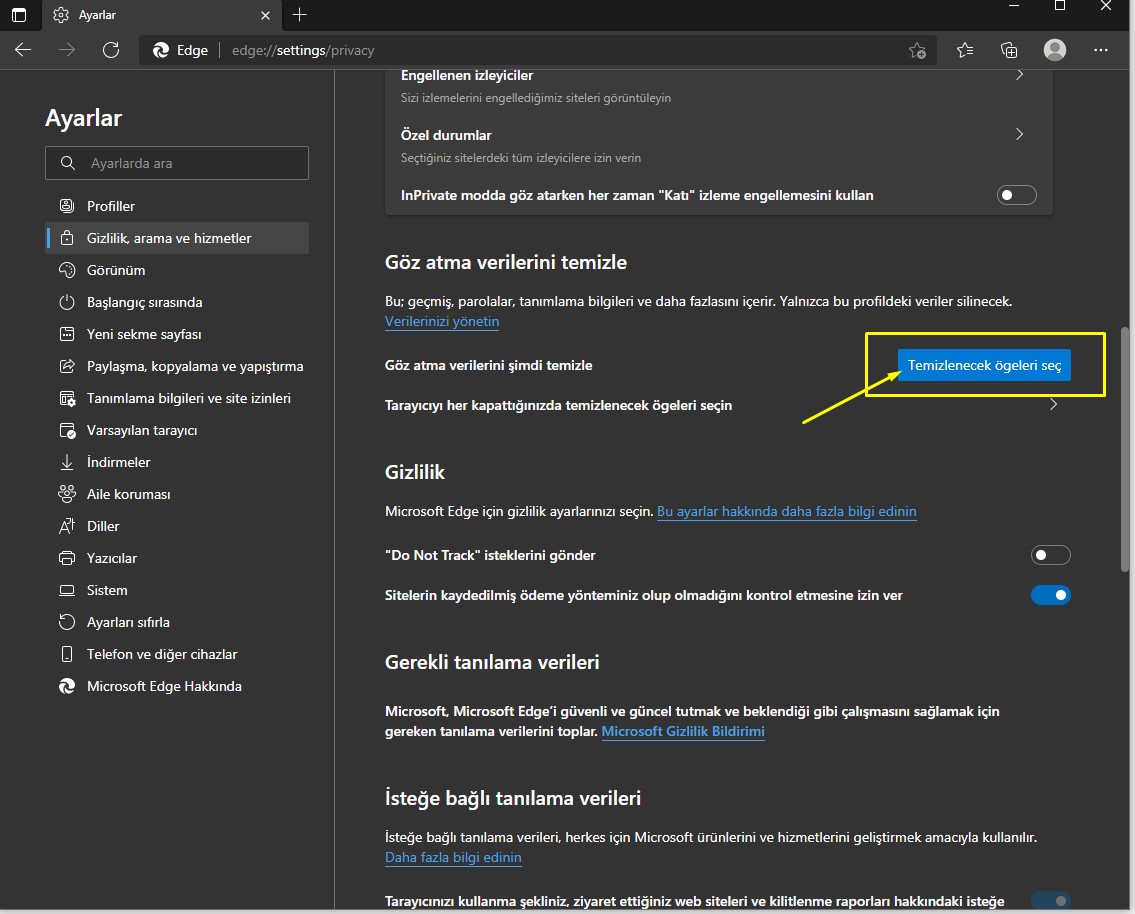
Under the Clear browsing data section, click Choose what to clear.
Make sure Cookies and other site data is checked.
Click Clear now.

*Other Options


Internet Explorer
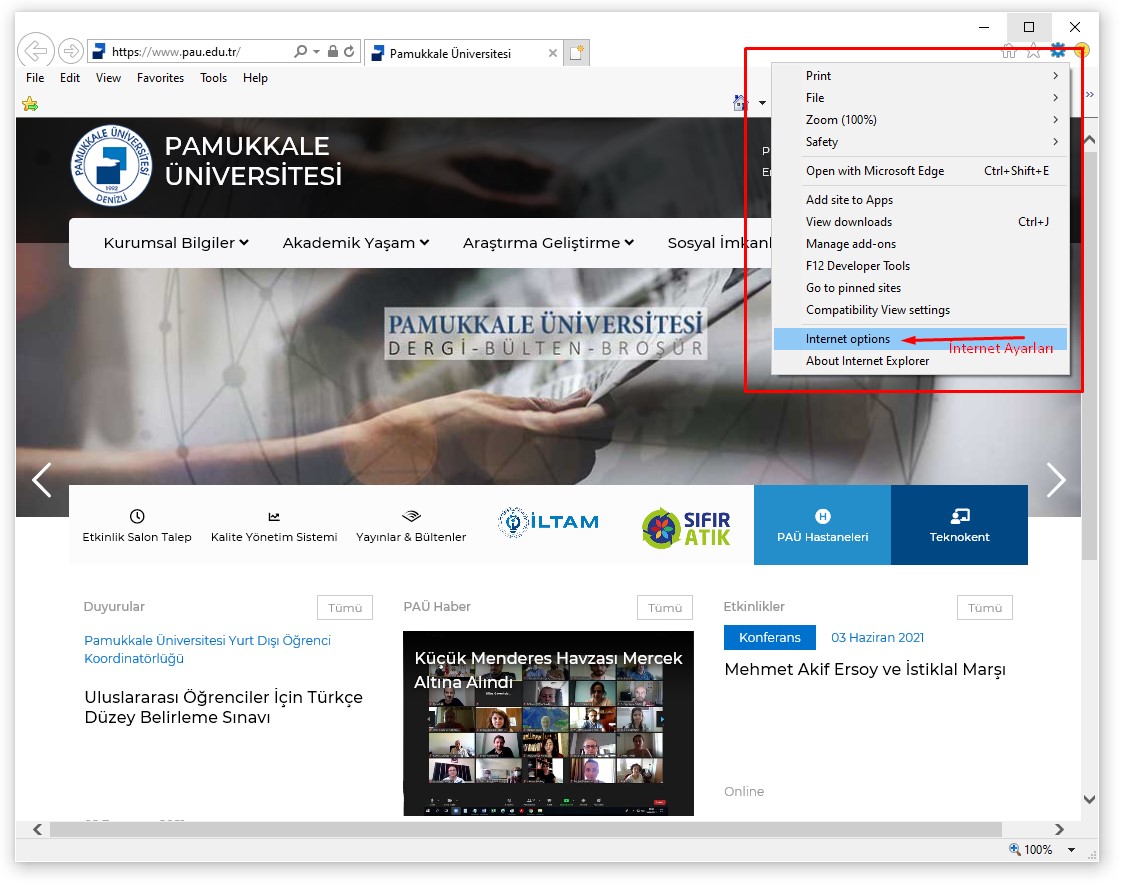
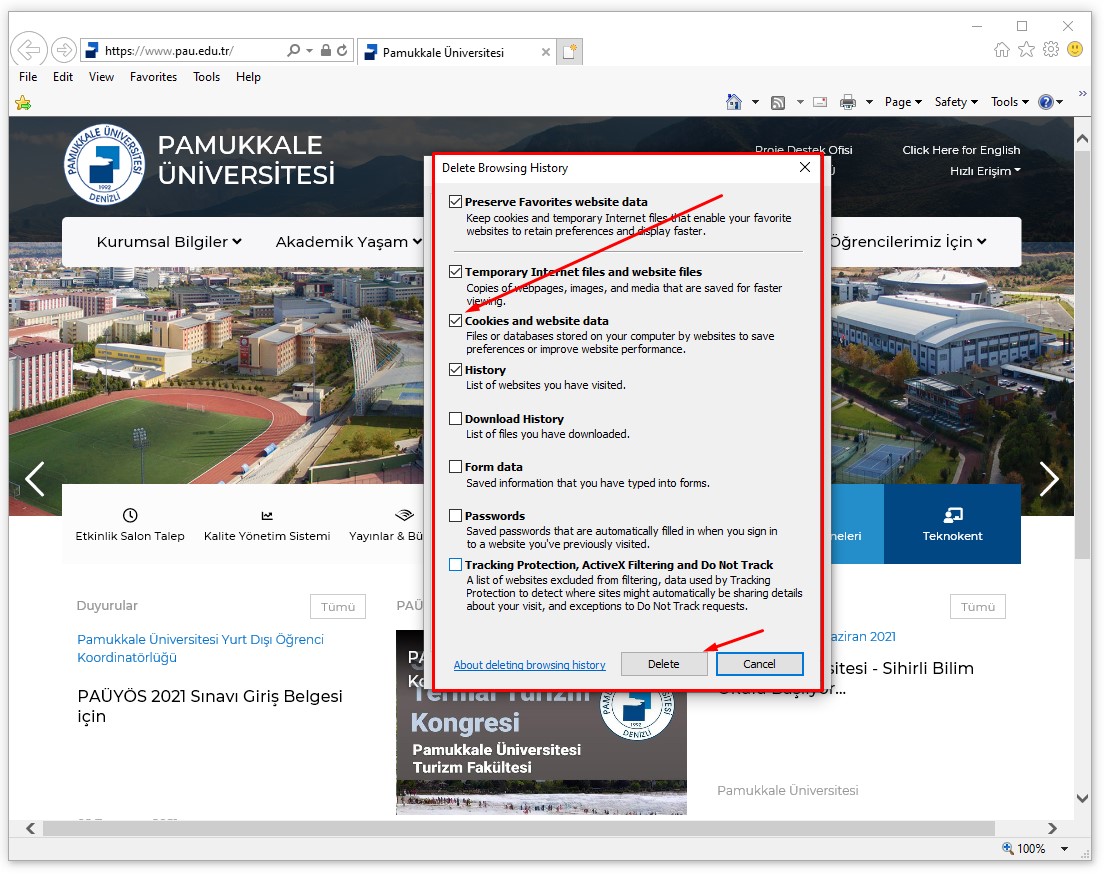
To clear cookies in Internet Explorer:
Click the gear icon (Settings) in the top-right corner of the Internet Explorer window.
Go to Internet Options.
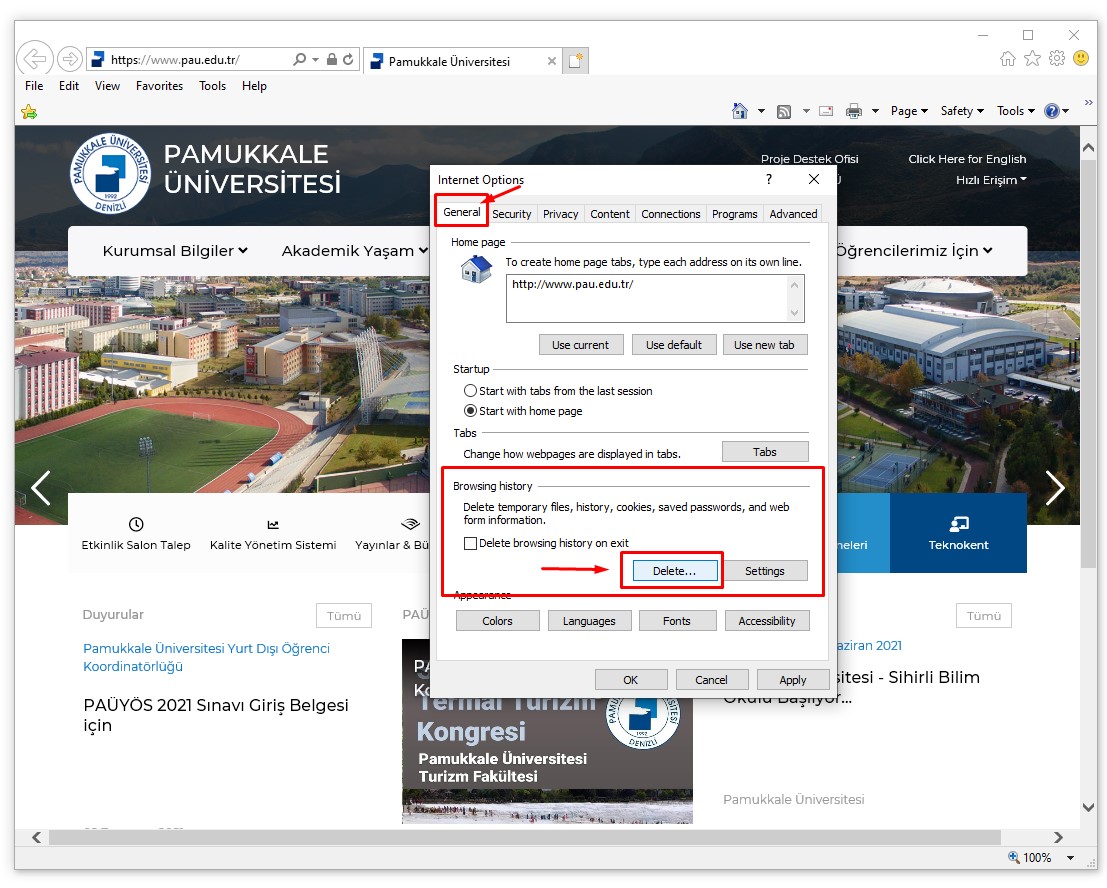
Under the General tab, click Delete...
In the pop-up window, check Cookies and website data.
Click Delete.

Clearing Cookies on Mobile Phones
Safari (Mobile Phone)
For iPhone:
Go to Settings > Safari
Tap Clear History and Website Data
Confirm your selection.
Chrome (Mobile Phone)
For iPhone:
Open Chrome and tap the three dots in the bottom-right corner.
Go to Settings.
Tap Privacy.
Select Clear Browsing Data and make sure Cookies and Site Data is checked.
Tap Clear Browsing Data > Done.
For Android:
Open Chrome > More > Settings > Privacy.
Tap Clear Browsing Data.
Select All Time (optional).
Tap Clear Data.
Firefox (Mobile Phone)
For iPhone:
Go to Settings > Privacy > Data Management.
Tap Clear Private Data.
For Android:
Open Menu > Privacy.
Tap Clear Now.
Select Clear Data.
Opera (Mobile Phone)
Go to Settings > Clear Browser Data.
Select Cookies and Site Data to remove all cookies.
Tap Clear.